 DONNOK
Turn a charging iPhone into a money display: StandBy widget setup
Add the small DONNOK widget to iPhone StandBy and see your estimated purchasing power while charging. Covers when StandBy starts, adding the widget, Night Mode and refresh timing.
When does StandBy start?
StandBy must be switched on under StandBy in the Settings app. Then connect the locked iPhone to a charger, place it on its side and leave it still. StandBy is available from iOS 17, and the DONNOK app can be installed on iOS 16.4 or later.
On models with an Always-On display, StandBy stays on; on others, tap the screen or gently nudge the table the iPhone is on. Swipe left or right to move between widgets, photos and the clock.
How do you add the DONNOK widget to StandBy?
StandBy’s widget view has two widget stacks, left and right, and each can hold apps’ small widgets. These steps are based on Apple’s guide and DONNOK’s widget setup; button positions can vary slightly between iOS versions.
- Open DONNOK once to check your funds are registered and the theme under Settings → Widgets is how you want it.
- Charge the iPhone on its side to start StandBy and swipe to the widget view.
- Touch and hold the left or right widget and unlock with Face ID or your passcode to start editing.
- Tap the add (+) button, choose DONNOK in the widget list and add it.
- Tap Done, then swipe the stack up or down until the DONNOK widget is showing.
How does the DONNOK widget look in StandBy?
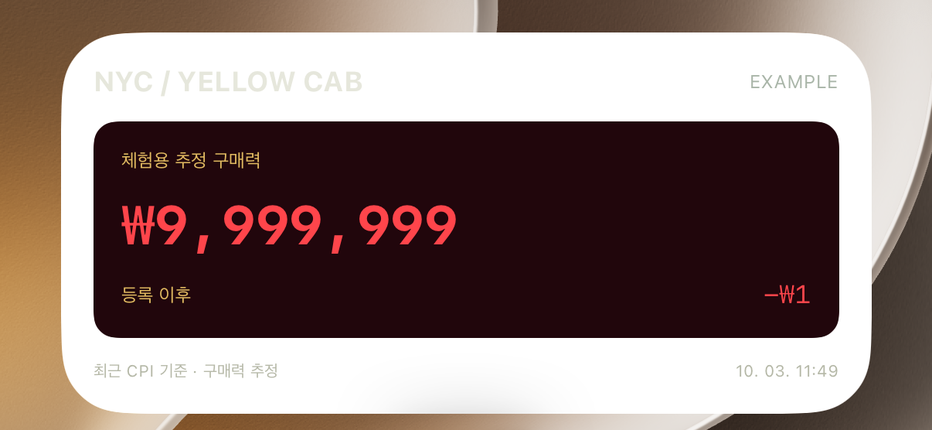
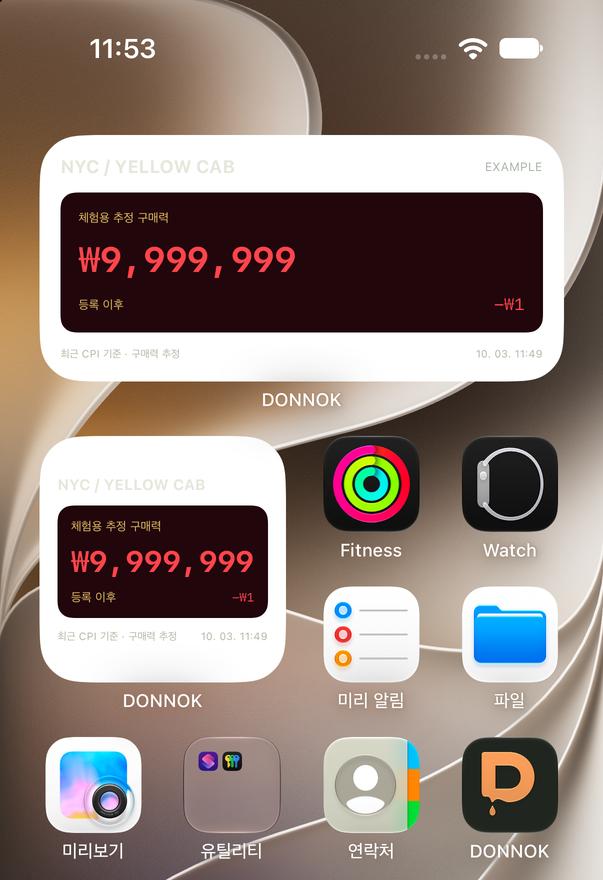
StandBy enlarges the small home screen widget to half the screen. It shows your total estimated purchasing power, the cumulative change since registration and the calculation time, following the theme and options you set in DONNOK under Settings → Widgets.
StandBy places widgets on a dark screen, and iOS may remove or recolor a widget’s background, so it can look different from the home screen. With Night Mode on, iOS dims the screen in low light and shows widgets in a red tint. The small widget was made for the home screen and its text is fairly small, so keep the iPhone close if you want to read it.
What if the amount is hidden or the number updates late?
The amount in the DONNOK widget is marked as private information that iOS can hide while the device is locked. Depending on your device and settings, a redaction may appear instead of the amount while the iPhone is locked. Keep this in mind in a bedroom or office where others can see the screen.
The app prepares hourly values for seven days, and iOS decides when they appear. If the number has not changed for a long time, open DONNOK and tap Refresh widget under Settings → Widgets. If DONNOK is missing from the widget list, restart the iPhone and check again. Do not delete the app to fix it: your funds are stored only on the device and cannot be restored.
StandBy widget or in-app full screen?
If you want a quick look next to the clock while charging, the StandBy widget is convenient. The number changes when iOS decides, but you can see it on the StandBy widget view without opening the app.
If you want a board that moves every second and the full atmosphere of a theme, keep the app open in landscape full screen. Screen keep-awake, title and clock settings are covered in the full-screen guide.