 DONNOK
How to add DONNOK iPhone widgets—and why refresh can be delayed
How to add DONNOK widgets to the iPhone Home Screen and Lock Screen, choose what they show, understand delayed updates and troubleshoot without deleting your records.
How do I add a widget to the iPhone Home Screen?
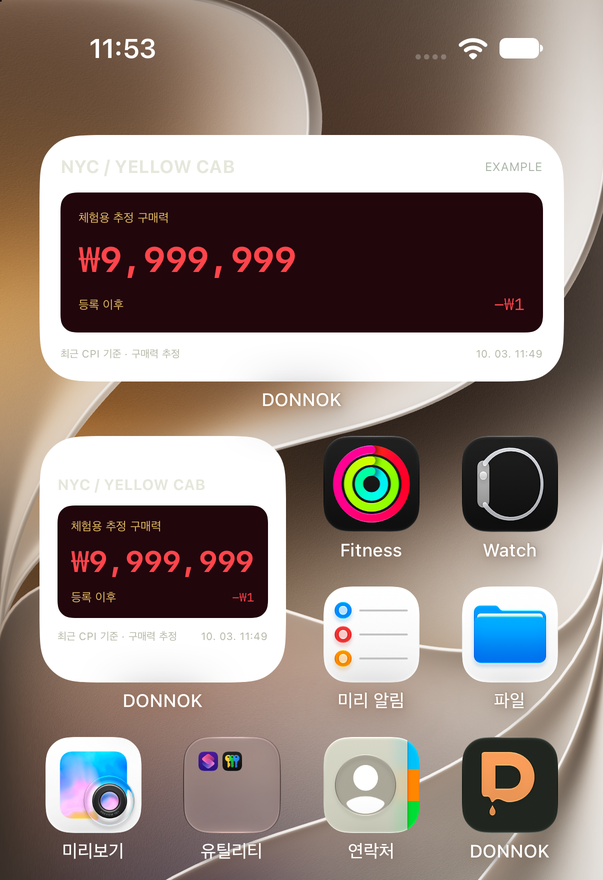
Enter Home Screen editing mode, find DONNOK and add the size you want. We checked these steps in the iOS 27 Simulator on 3 October 2026. Button shapes and positions may differ slightly by iOS version.
- Touch and hold an empty area of the Home Screen to enter editing mode.
- Tap the Edit button in the top-left corner and choose Add Widget. Earlier iOS versions may show a + button instead.
- Choose DONNOK in the widget list, swipe to pick the small or medium size, then tap Add Widget.
- Place the widget and tap the Done button in the top-right corner.
How do I add it to the Lock Screen?
Touch and hold the Lock Screen, choose Customize → Lock Screen, tap the widget area and select DONNOK. The Lock Screen supports rectangular and inline widgets. If space is limited, you may need to adjust existing widgets first.
iPhone Lock Screen widgets follow the system’s monochrome style, so they do not show the app’s theme colors or backgrounds. Amounts may be abbreviated depending on widget size. For Android, see the separate widget guide.
What information does the widget show?
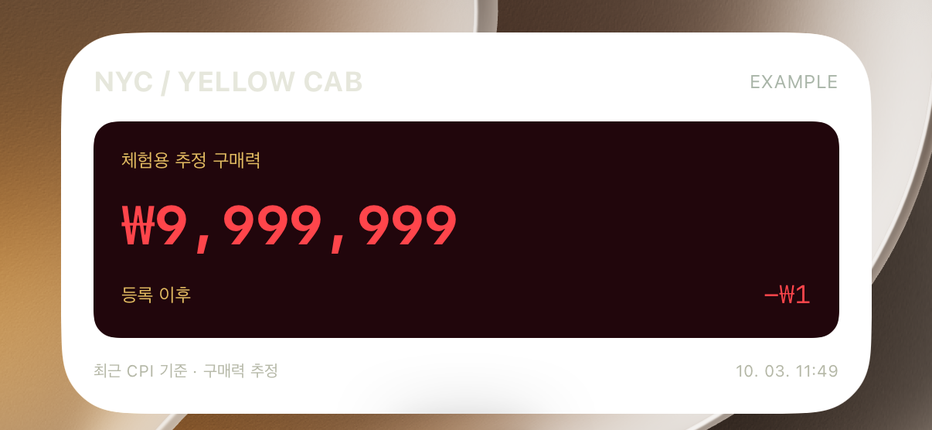
The widget shows the total estimated purchasing power for your selected currency and the cumulative change since registration. The time at the bottom is the hourly point the value was calculated for, which can differ from when the widget was last drawn. Compact widgets such as the inline style leave out some items, and sample mode adds a sample label.
Individual fund names and loan details are not passed to the widget. However, amounts on Home Screen and Lock Screen widgets can be visible to other people, so decide whether you want them displayed.
Where do I set the theme, decimals and cumulative change?
In DONNOK, open Settings → Widgets to choose the theme, decimal places, cumulative change and calculation time. A theme applies after you pick it from the list and tap Save; the other options save immediately. Settings apply to all DONNOK widgets.
You can match the app’s theme or pick one of the eight themes separately. Use the app for detailed fund editing and full display effects; widgets are for a quick look.
What should I check if the number stays the same after a refresh?
The app prepares hourly values for the next seven days from your current funds and passes them to iOS. iOS decides when they appear, so an unchanged widget right after a request does not prove that the request failed. If you do not open the app for seven days, the widget keeps the last value and asks you to open the app to refresh; when the economic data or estimation basis reaches the end of its validity period, it keeps the last valid value and shows that an update is needed.
Check in this order.
- Open DONNOK once and confirm that your funds are saved as intended.
- In Settings → Widgets, save any changed settings and tap Refresh widget.
- If DONNOK does not appear in the widget list, restart your iPhone and check again.
- If the problem continues, contact support with your device, iOS and app versions and a description. Do not send fund names or amounts.
Should I delete the app to fix a widget?
Do not start by deleting or resetting the app. DONNOK stores funds only on your device and does not offer cloud backup, so the operator cannot recover deleted records.
Removing a widget from the Home Screen does not affect your fund records in the app. If the issue remains, contact support before erasing anything.