 DONNOK
How to add the DONNOK Android widget: sizes, display and refresh
Two ways to add the DONNOK widget to an Android Home screen, what it shows at each size, and why hourly refresh requests can appear late.
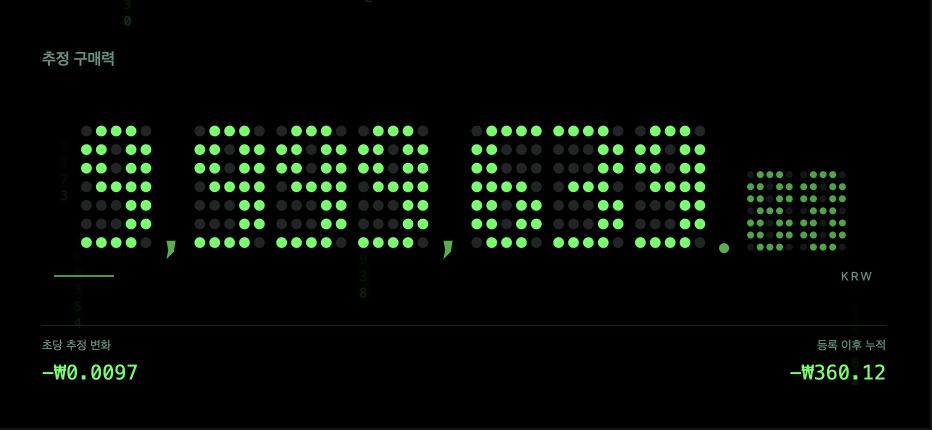
How do I add the widget from the app?
Requesting it from the app is the simplest option. On Android 8.0 or later, if your launcher supports it, a system dialog opens and you confirm the final step.
- Open DONNOK and go to Settings → Widgets.
- Under How to add, tap Add to home screen.
- When the system dialog opens, review it and confirm. If no dialog appears, follow the in-app instructions to add the widget from the Home screen.
How do I add it directly from the Home screen?
Touch and hold an empty area of the Home screen, choose Widgets, find DONNOK and place it where you want. Use this method if your launcher does not open the system dialog.
Menu names and positions vary by manufacturer, launcher and Android version. See the Android Help article in the sources below for the general steps.
What does the widget show at each size?
The default size is two cells wide and one cell high, and you can resize it horizontally and vertically. Your launcher decides the actual cell size.
A short widget shows the amount first. Make it taller to add a short description and, if turned on, the cumulative change; make it taller still to show the calculation time, if turned on. The title includes the currency code, sample mode shows DEMO, and tapping the widget opens DONNOK.
In Settings → Widgets, you can match the app’s theme or choose one of the eight themes. The Android widget applies only the selected theme’s colors (background, amount and secondary text); it does not reproduce theme-specific digit styles such as FLIP cards, NIXIE tubes or LED dots, or full-screen backgrounds.
When does the number on the widget change?
The app calculates hourly estimates for the next seven days from your current funds and economic data and stores them on the device. When Android redraws the widget, it picks the latest value up to that moment, so the display keeps moving forward even when the app is closed.
DONNOK requests a widget update every hour, but Android decides when it runs, and battery saving or your launcher can delay it. Opening the app, changing widget settings or tapping Refresh widget prepares new values when needed. This refresh does not download new economic data; it recalculates the estimate from the data already on the device.
If you do not open the app for seven days, the widget keeps the last value and asks you to open the app to refresh. When the economic data or estimation basis reaches the end of its validity period, the widget also keeps the last valid value and shows that an update is needed.
Can I add it to the Lock Screen?
This guide covers the Home screen widget. Lock screen widgets on Android depend on the device, OS version and manufacturer, and the DONNOK app only suggests adding the widget from lock screen settings on supported devices.
If your device has no lock screen widget option, use the Home screen widget. Amounts on Home screen or lock screen widgets can be visible to other people.
What if the widget is missing or seems stuck?
Do not start by deleting the app or clearing its data. DONNOK stores funds only on your device and excludes them from Android device backups, so deleting the app means the records cannot be recovered. Removing the widget from the Home screen does not affect your fund records.
Check in this order.
- Open DONNOK once and confirm that your funds are saved as intended.
- Go to Settings → Widgets and tap Refresh widget.
- If the problem continues, contact support with your device model, Android and app versions and a description. Do not send fund names or amounts.